


How to Assign Team Members to an Account
When managing multiple phone numbers in your account, it’s essential to assign team members to the correct accounts. This ensures they can send and receive messages on the appropriate numbers. By inviting new members, having them accept the invitation, and assigning them to specific phone numbers, you can give your team the proper access they need. Team members who are not assigned will not see messages or be able to send from those numbers, so careful assignment is key to smooth messaging operations.
Assigning Members to a Phone Number
When you add a new phone number or manage an account with multiple phone numbers, it’s important to assign your team members to the appropriate accounts to ensure they have access.
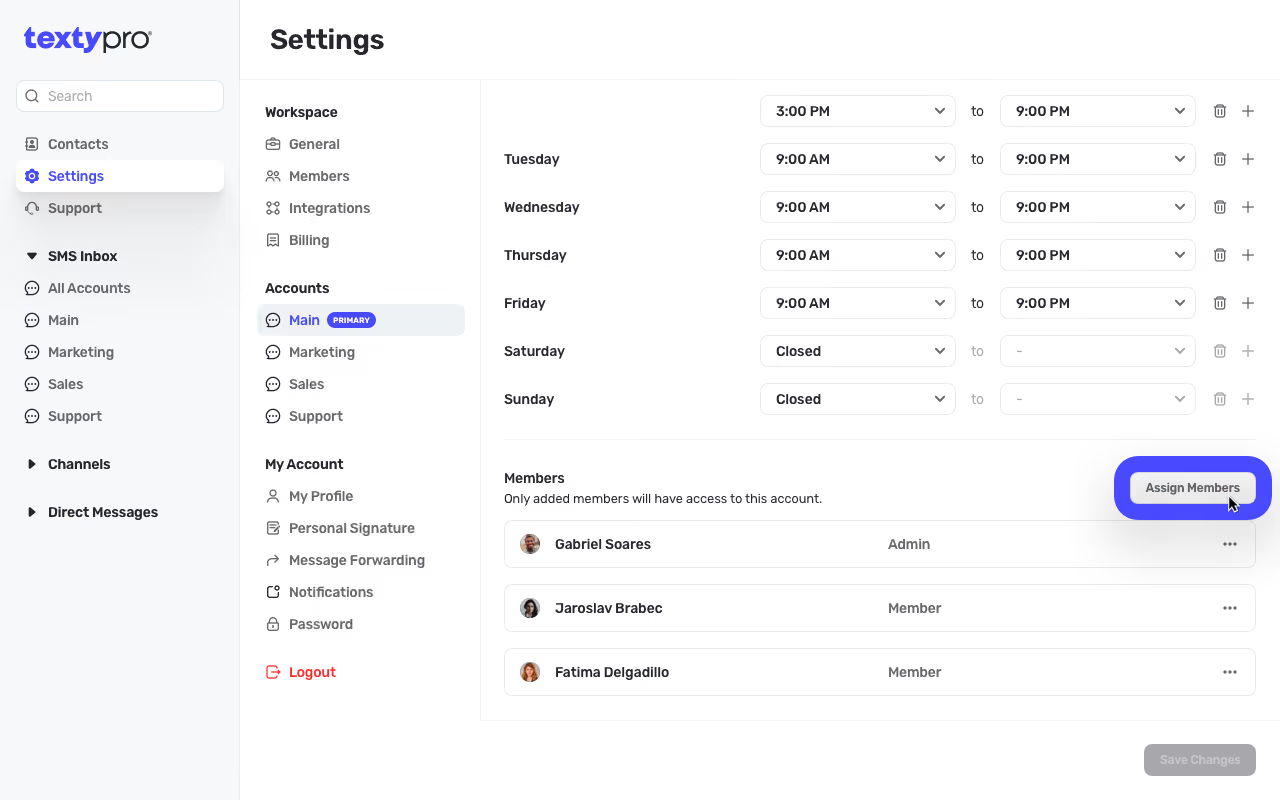
Steps to Assign Team Members:
- Assign the Team Member to a Phone Number:
- Log in as the admin and go to the Settings page.
- Choose the appropriate account/phone number that you want the member to have access to.
- Add the team member to this account.
Important:
- Team members who are not assigned to a phone number will not be able to see messages received on that number or send messages from it.
- Make sure all necessary team members are added to each phone number they need to access.
By following these steps, you can ensure that all team members have the proper access to the phone numbers they need to manage.
Want to learn more about how you'll benefit with business text messaging?
Schedule a 30 minute live demo to meet with one of our team members to discuss how our business text messaging service can benefit your business or organization.